Tabster Help Center
Reviewing your amount owed and settling up
To pay your share of the bill, click the Pay button at the bottom of a receipt page. From there, you will be brought to the payment summary page.
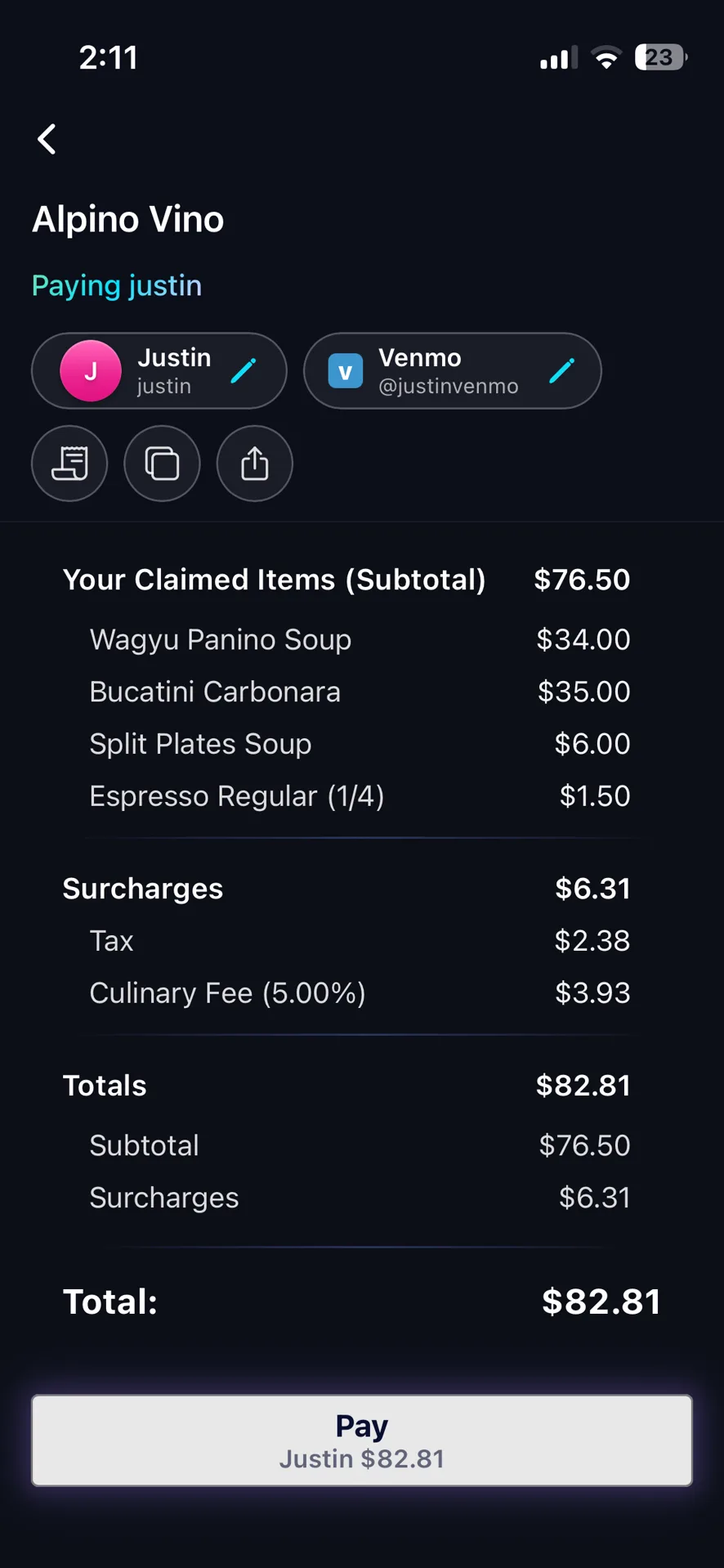
Check your items and claimed splits, and the fees & surcharges split automatically in proportion to how much you've claimed.
The breakdown is itemized rather than a single figure, so you can see exactly what you are paying for. That is the difference between being told you owe $35.99 and being shown why.
Then review the payer and payment method at the top. Clicking pay will either link you directly to the payment platform of choice (i.e. Venmo, Cash App) or give you the information you need to complete payment (i.e. Zelle).
Check the payer is right before you send. It is whoever actually put their card down, and it is the one detail worth a second of attention, because a payment sent to the wrong person is the one mistake Tabster cannot undo for you.
If a number looks wrong, open the original receipt photo from the icon left of the three dot menu and compare before paying.
Paying does not delete the receipt. It stays on your homepage with the full breakdown, so you can look up months later what a given dinner actually cost you. You will be prompted to mark the receipt as paid the next time you open the app, so it shows as paid on your homepage and in your running tab with the friend you paid back in the stories section of the homepage. This is just for your record keeping and does not delete or freeze the receipt.
Need more help?
We're here for you. Email us at support@tabster.ai and we'll get back to you as soon as possible.


